jps services
  • Home Page
  • GIS Training Courses
    • QGIS Training Courses
    • ArcGIS Training Courses
    • MapInfo Pro Training Courses >
      • MapBasic Training Course
  • About
  • Blog

What’s New in QGIS 3.44

27/10/2025

0 Comments

 
​Released on 20 June 2025,  QGIS 3.44 (Solothurn)  marks the last feature-packed release in the 3.x series before the transition to QGIS 4.0. This version refines workflows, boosts performance, and introduces a stunning new way to visualise your data — making it a worthwhile upgrade for all GIS users.

Below is an overview of the main highlights.

​Explore the World with the New 3D Globe View

​One of the most exciting new features in QGIS 3.44 is the  3D Globe View . You can now open your map project on a full 3D globe rather than a flat plane, allowing for true planetary-scale visualisation.

Key benefits include:
  • Support for  3D Tiles  and  point-cloud layers  directly in Globe View.
  • Smooth performance when zooming between local and global scales.
  • Simple access via  View → 3D Map Views → New 3D Globe View .

For consultants and trainers, this feature offers a visually engaging way to demonstrate global datasets and spatial relationships.

​Workflow and Processing Enhancements

QGIS 3.44 continues to improve the daily user experience with advancements across the Processing toolbox and Expression engine.

Highlights include:
  • Enhanced  database connectivity  for smoother integration with PostGIS and other data sources.
  • Faster, more stable  processing algorithms  for geoprocessing workflows.
  • Refined  labelling and layout tools , giving better control over print maps and atlas outputs.

These updates make QGIS more efficient and reliable, particularly when creating deliverables for clients or during live training sessions.

​Smarter Project and Data Management

Version 3.44 introduces several refinements that make working across machines and teams much easier:
  • Improved project portability with enhanced relative path handling.
  • More responsive performance when working with large datasets.
  • Better compatibility with plugins and third-party data providers.

This stability and compatibility make 3.44 a strong, dependable platform for production work and teaching environments.

​Why It Matters for Training and Consultancy

​For those providing GIS training and consultancy — especially if you work with clients transitioning from ArcGIS or MapBasic — this release has several advantages:
  • For beginners:  The 3D Globe provides an immediate visual “wow” factor, helping new users grasp spatial concepts quickly.
  • For advanced users:  Improved automation and processing mean more time analysing data and less time fixing issues.
  • For clients:  Using the latest QGIS version demonstrates commitment to best practice and modern tools.
  • For trainers:  QGIS 3.44 ensures stability and plugin compatibility before the move to version 4.0.

​Recommended Next Steps

​1.  Update your setup:  Install QGIS 3.44 on all training or project computers.
2.  Revise your materials:  Add short examples showing the 3D Globe and layout enhancements.
3.  Test your plugins:  Confirm compatibility before running live demos or workshops.
4.  Inform your clients:  Mention that your deliverables and lessons use QGIS 3.44 for full compatibility.
5.  Prepare for QGIS 4.0:  The next major release will bring the transition to Qt 6, but 3.44 remains a solid, long-term platform.

​Final Thoughts

​QGIS 3.44 is a polished, professional-grade release that rounds off the 3.x series beautifully. The addition of the Globe View, along with numerous workflow and performance improvements, makes it an excellent choice for consultants, educators, and GIS professionals alike.

If you haven’t yet upgraded, now is a great time to do so — and to start preparing your workflows and training materials for the next big leap to QGIS 4.0.

​Need Help Getting Started with QGIS 3.44?

​If you’d like support setting up QGIS, migrating existing projects, or providing staff training materials, we can help.
Please get in touch and discuss your GIS requirements.
0 Comments

Introduction to QGIS

8/5/2025

0 Comments

 
This blog will provide an overview of QGIS, its interface, and basic navigation.
​
What is QGIS?
QGIS (Quantum GIS) is a free, open-source Geographic Information System that allows you to create, edit, visualize, analyse, and publish geospatial information on Windows, Mac, Linux, and mobile devices. It supports vector, raster, and database formats.

​Interface Overview
When you first open QGIS, you’ll see the following main components:
​
Menu Bar: Contains menus for various functions like Project, Edit, View, Layer, Settings, Plugins, Vector, Raster, Database, Web, Processing, and Help.
Picture
Toolbar: Quick access to common tools such as zoom, pan, selection, and layer management.

Picture
Layers Panel: Lists all the layers in your project. You can manage layer visibility, group layers, and set properties here.
Picture
Browser Panel: Provides easy access to your data sources including local files, databases, and web services.
Picture
Map Canvas: The main area where your map is displayed and edited.
Picture
Status Bar: Displays map coordinates, scale, and other useful information.
Picture
Opening QGIS

Launch QGIS: Double-click the QGIS icon on your desktop or find it in your start menu.

Create a New Project: Go to Project > New to start a new project. You can also use the New Project button on the toolbar

Understanding the Interface

Menu Bar:

Familiarize yourself with the menus.

For example, Project for project-related tasks, Layer for layer management, and View for map navigation tools.
Toolbar:

Explore the toolbar icons. Hover over each icon to see a tooltip that describes its function.
Common tools include:
Zoom In/Out: Magnify or reduce the map view.
Pan: Move the map without changing the zoom level.
Select Features: Select features from layers.
Identify Features: Click on a feature to see its attributes.
Measure: Measure distances and areas on the map.
Layers Panel:

This panel displays all the layers in your project. You can control the visibility of layers by checking or unchecking the boxes next to each layer name. Right-clicking on a layer opens a context menu with options for layer management.
Browser Panel:

This panel helps you navigate through your files and databases. You can drag and drop data directly from the browser to the map canvas.
Map Canvas:

The central part of the interface where your map is displayed. You can interact with the map using the tools from the toolbar.
Status Bar:

Located at the bottom of the QGIS window, it shows useful information such as the current map coordinates, scale, and rendering progress.
Basic Navigation

Zooming and Panning:

Use the Zoom In and Zoom Out tools to change the map view. Alternatively, you can use the scroll wheel on your mouse.
Use the Pan tool or hold down the middle mouse button to move the map around.
Selecting Features:

Click on the Select Features tool.
Picture
Then click and drag on the map canvas to select features within the drawn rectangle.
Picture
Identifying Features:

Use the Identify Features tool to click on any feature on the map.

Picture
 A window will pop up displaying the attributes of the selected feature.

Picture
Summary
In this blog, we have covered the basic components of the QGIS interface and how to navigate within the software. Understanding the interface is the first step in utilizing QGIS for geospatial analysis and map creation.

0 Comments

Repairing Broken Links in a QGIS Project:

13/3/2025

0 Comments


Why Broken Links Happen

Working on GIS projects in QGIS (Quantum GIS) can be an enriching experience, but it’s not uncommon to encounter issues such as broken links to data sources. Broken links occur when the paths to your data files change, which might happen due to file relocation, renaming, or transfer to a different system. Here’s a  guide to repairing broken links in a QGIS project to ensure your data is correctly loaded and your project runs smoothly.

Broken links in QGIS typically occur due to:

Moving files: If you move your data files to a different directory or drive.
Renaming files or directories: Changing the name of your data files or the directories they reside in.
Relative paths: Using relative paths in your project and then moving the entire project to a different location without updating the paths.

Identifying Broken Links

 When you open a QGIS project with broken links, QGIS will alert you to the missing layers. Here’s how you can identify them:
Picture

Notification on Load

 When you open a project, QGIS will display a message box listing the layers that couldn't be found. Select the Keep unavailable layers option.

Layer Panel

 In the Layer Panel, layers with broken links are usually displayed with a red exclamation mark or an error message.
Picture

Repairing Broken Links

 When the dialog box shows the layers with broken links opt to keep them in the project.
Picture

Using the Data Source Manager - Open Data Source Manager

You can open the Data Source Manager by right-clicking on the problematic layer in the Layer Panel and selecting "Repair Data Source”
Picture

Change Data Source

 In the "Repair Data Source" dialog box you can browse to the new location of your data file
Picture

Apply Changes

After selecting the correct file, click "Apply" and then "OK" to update the data source. Then repeat this process with any other layers containing a red triangle.
Picture
0 Comments

Exploring QGIS: A Comprehensive Guide to GIS Training

9/3/2024

0 Comments

 
Introduction to QGIS:
QGIS, also known as Quantum GIS, is a user-friendly and feature-rich GIS software that enables users to create, edit, visualize, and analyse spatial data with ease. Developed by a global community of GIS enthusiasts and professionals, QGIS offers a robust set of tools and functionalities to support a wide range of GIS tasks, from simple mapping to complex spatial analysis.
User Interface and Navigation:
Upon launching QGIS, you'll be greeted with an intuitive user interface designed to facilitate seamless navigation and access to essential tools. The interface consists of various panels, including the Layers panel for managing spatial data layers, the Browser panel for browsing files and databases, and the Map Canvas for viewing and interacting with your maps. Familiarizing yourself with these components will help you navigate QGIS efficiently and make the most of its features.

Importing and Managing Spatial Data:
​QGIS supports a multitude of spatial data formats, including shapefiles, GeoTIFFs, GPS data, and more, making it easy to import and manage your spatial data within the software. Whether you're working with data from a local file or connecting to a remote database, QGIS provides straightforward methods for importing, organizing, and editing your spatial datasets. Understanding how to effectively manage spatial data is essential for conducting meaningful analysis and creating informative maps.
Mapping Tools and Cartographic Design:
One of the highlights of QGIS is its powerful mapping tools, which allow users to create visually compelling maps tailored to their specific needs. From basic symbology and labelling options to advanced cartographic features like scale-dependent rendering and map composer, QGIS provides the flexibility to design maps that effectively communicate spatial data insights. Learning how to leverage these mapping tools will enable you to create professional-quality maps that convey information accurately and effectively.
Spatial Analysis Techniques:
In addition to its mapping capabilities, QGIS offers a wide range of spatial analysis tools and functionalities to support data-driven decision-making. Whether you're conducting proximity analysis, spatial interpolation, or complex geoprocessing tasks, QGIS provides the tools and resources you need to perform meaningful spatial analysis. Mastering these spatial analysis techniques will empower you to extract valuable insights from your spatial data and address real-world challenges more effectively.

In conclusion, QGIS is a versatile and powerful GIS software that offers a wealth of features and capabilities for spatial data analysis and visualization. By familiarizing yourself with its user interface, mastering its mapping tools, and exploring its spatial analysis techniques, you can unlock the full potential of QGIS and embark on a rewarding journey of GIS exploration and discovery. Remember, learning GIS is a gradual process that requires patience, practice, and perseverance. So don't hesitate to dive in, experiment with different features, and seek guidance from experienced GIS professionals. ​
0 Comments

Understanding and Using QGIS Scripts: Calculate Total Area (Script Example)

13/10/2023

0 Comments

 
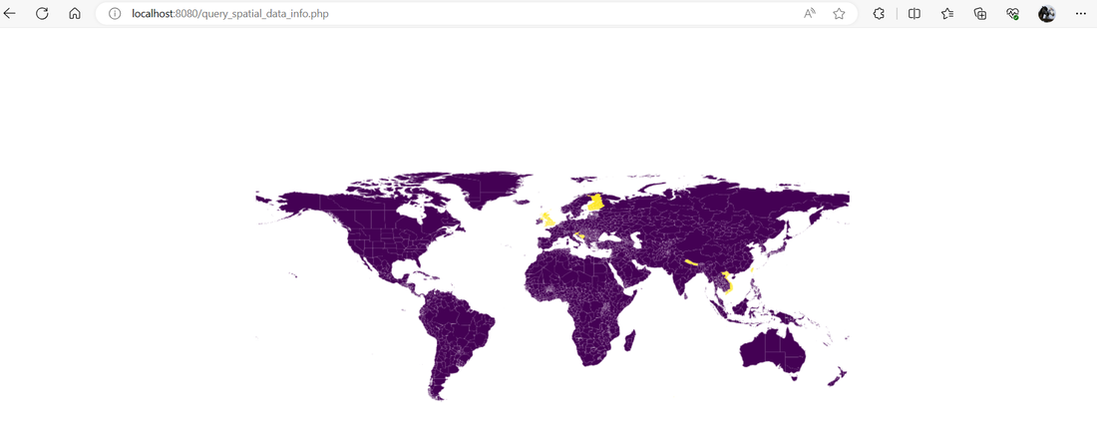
If you're new to GIS (Geographic Information Systems), you might wonder how to perform specific tasks efficiently. QGIS, an open-source GIS software, provides a powerful scripting interface that allows you to automate processes. In this blog, we'll explore a practical example: calculating the total area of features in a vector layer using a custom script. Don't worry; we'll break it down step by step.

Why Calculate Total Area?
Calculating the total area of features in a vector layer can be essential in various GIS projects. For instance, you might want to determine the total area of land parcels, water bodies, or administrative regions in a map. This information is valuable for urban planning, environmental analysis, and many other applications.

The QGIS Script
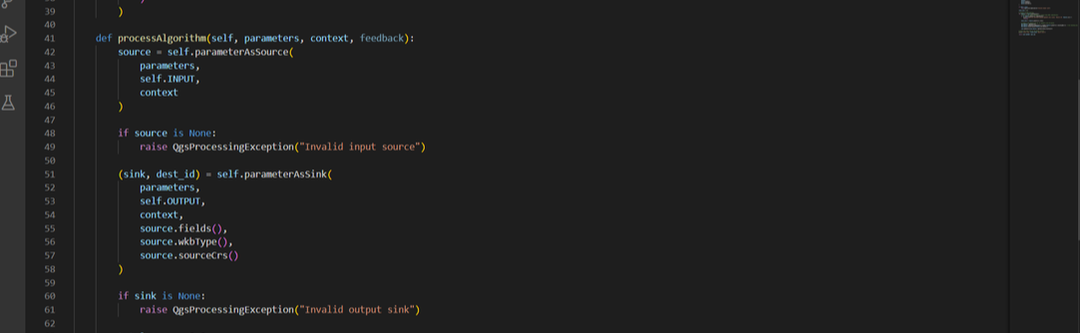
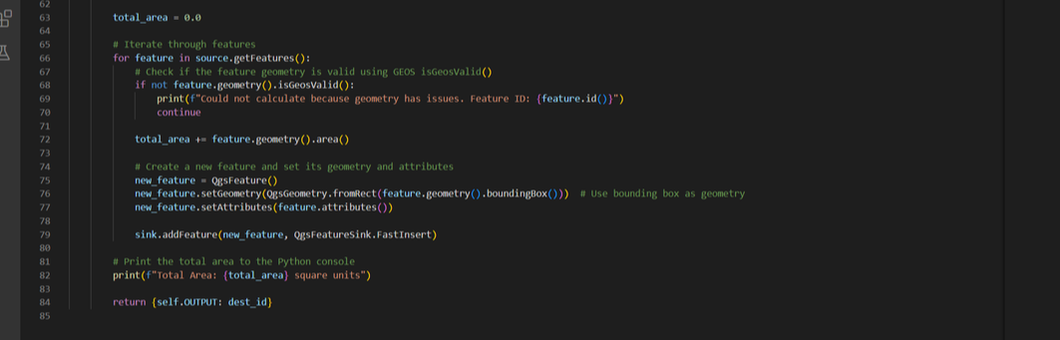
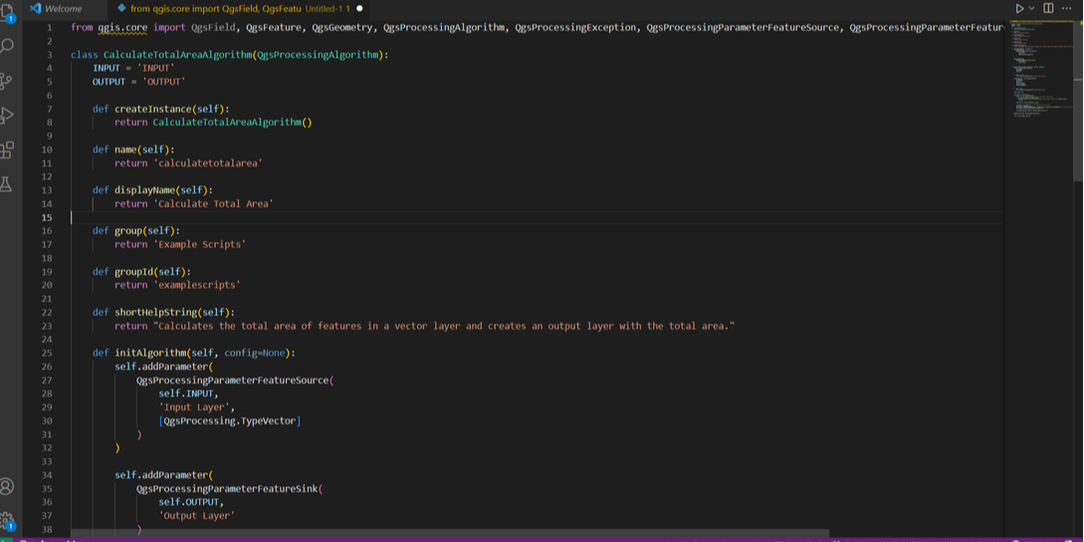
Here's the Python script that accomplishes this task:
Picture
Picture
Picture
How the Script Works
Let's break down the script into simpler terms:

1. Imports and Class Definition: The script starts by importing necessary modules from QGIS. Then, it defines a custom algorithm class `CalculateTotalAreaAlgorithm` that inherits from `QgsProcessingAlgorithm`. This class contains several methods that control the algorithm's behavior.

2. Algorithm Configuration: The `initAlgorithm` method sets up the algorithm's parameters. In this case, it defines the input and output layers.

3. Processing: The core logic happens in the `processAlgorithm` method. Here's a simplified explanation of what it does:
   - It retrieves the input vector layer.
   - It checks if the input source is valid.
   - It prepares an output layer.
   - It iterates through the features in the input layer.
   - For each feature, it checks if the geometry is valid.
   - If the geometry is valid, it calculates the area and creates a new feature.
   - The new features are added to the output layer.

4. Result: The script prints the total area to the Python console and returns the output layer.

Running the Script
To run this script in QGIS, you'll need to:
1. Open QGIS.
2. Go to the 'Processing' menu.
3. Open the 'Toolbox.'
4. Save your script as 'Calculate Total Area'
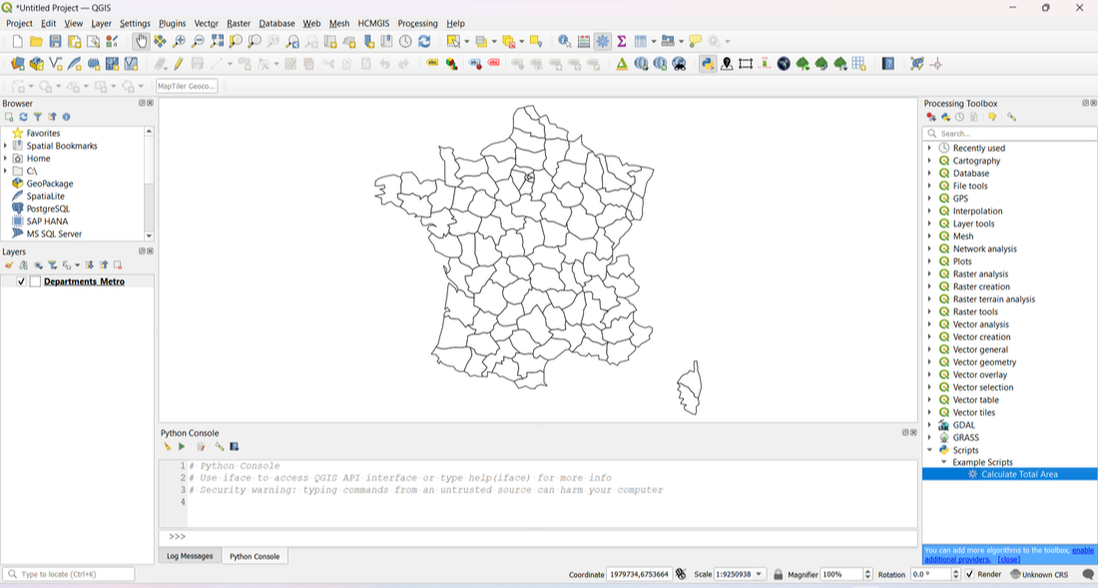
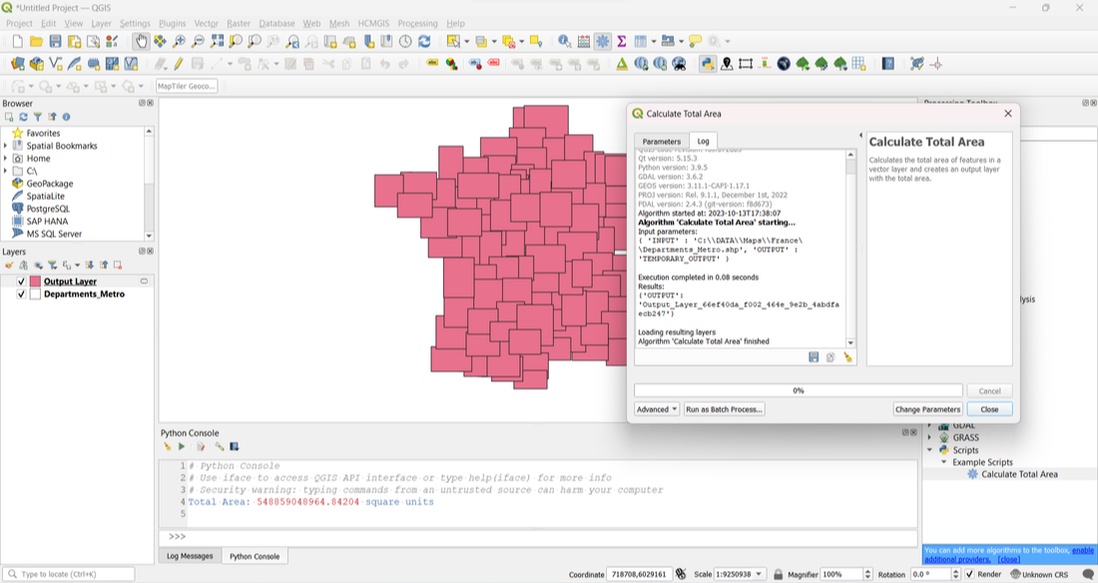
5. Under 'Scripts,' you should find 'Example Scripts,' and within that, 'Calculate Total Area.' 
Picture
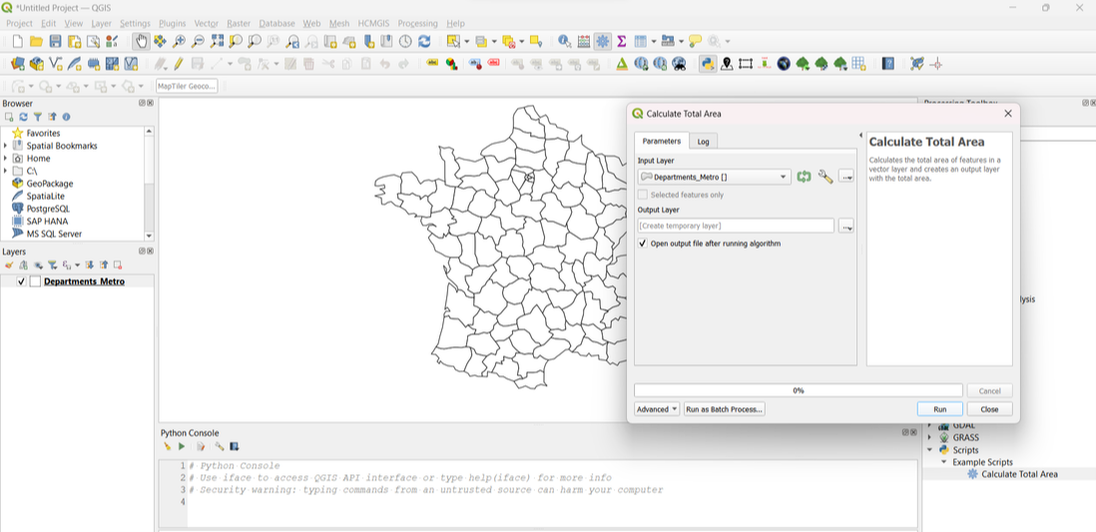
6. Set your input vector layer.
7. Choose an output location.
8. Click 'Run.'
Picture
​The result will be a new layer with the total area of each feature in the input layer.
Picture
​Understanding this script is a great step towards harnessing QGIS's scripting capabilities. You can use this knowledge to automate various GIS tasks. Experiment with it, modify it to suit your needs, and explore other QGIS scripts to expand your GIS skills.
0 Comments

Getting Started with the Python Console in QGIS: A Beginner's Guide

10/10/2023

0 Comments

 
 Getting Started with the Python Console in QGIS: A Beginner's Guide

In this blog post, we'll explore a fundamental tool within QGIS - the Python Console - and guide you through its basics, step by step. Don't worry if you're new to Python or QGIS; we'll keep it beginner-friendly.

Step 1: Opening the Python Console

To access the Python Console in QGIS, follow these simple steps:

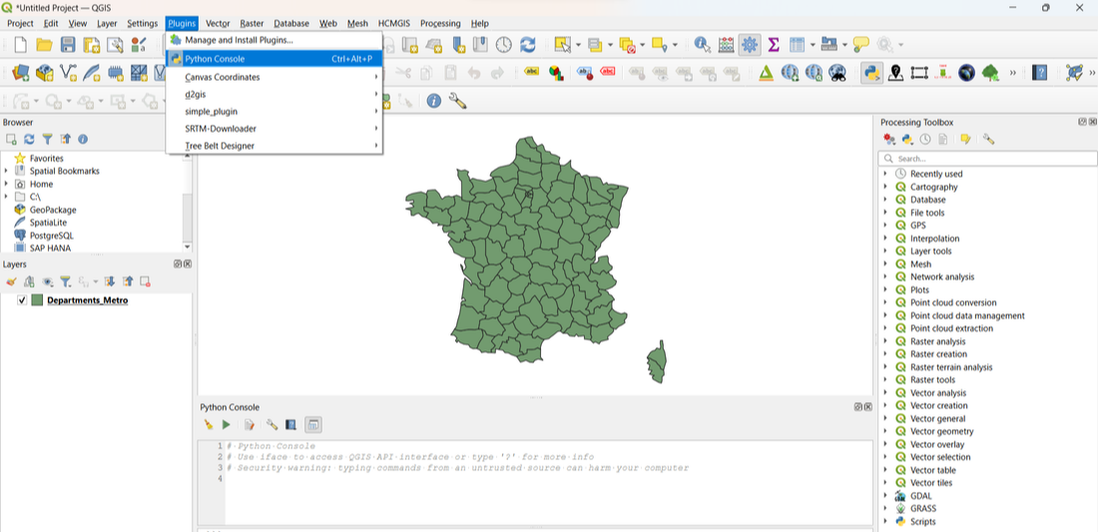
1. Launch QGIS.
2. Go to the "Plugins" menu.
3. Select "Python Console."
You'll see a new window at the bottom of your QGIS interface.  
Picture
 Step 2: Understanding the Python Console Interface

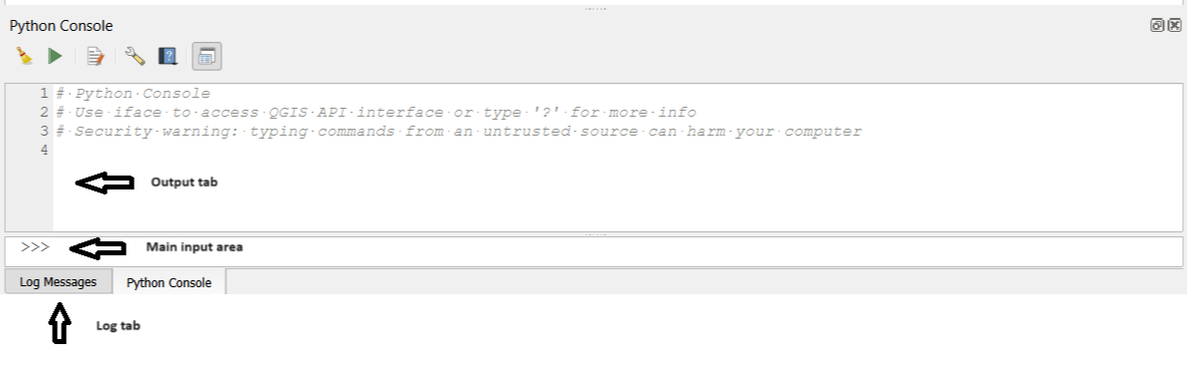
Before we start coding, let's understand the layout of the Python Console:

The main input area: This is where you'll write your Python code.
The "Output" tab: Displays the results of your code execution.
The "Log" tab: Shows any error messages or additional information.
Picture
 Step 3: Writing Your First Python Script
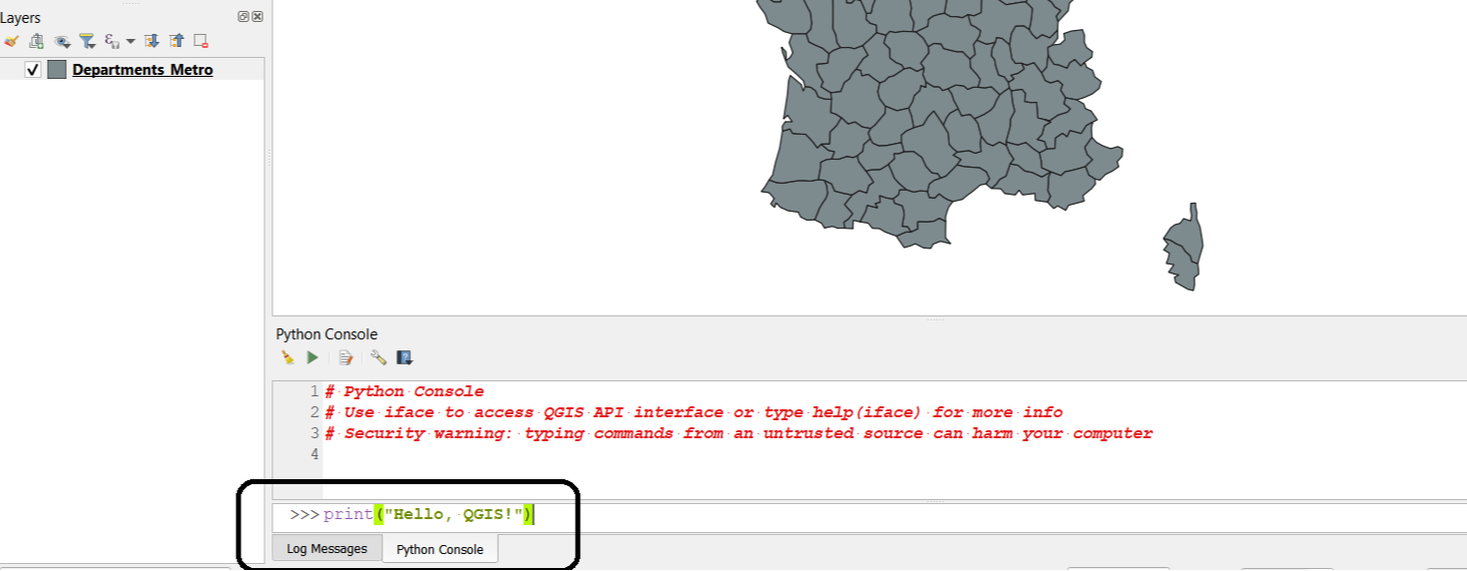
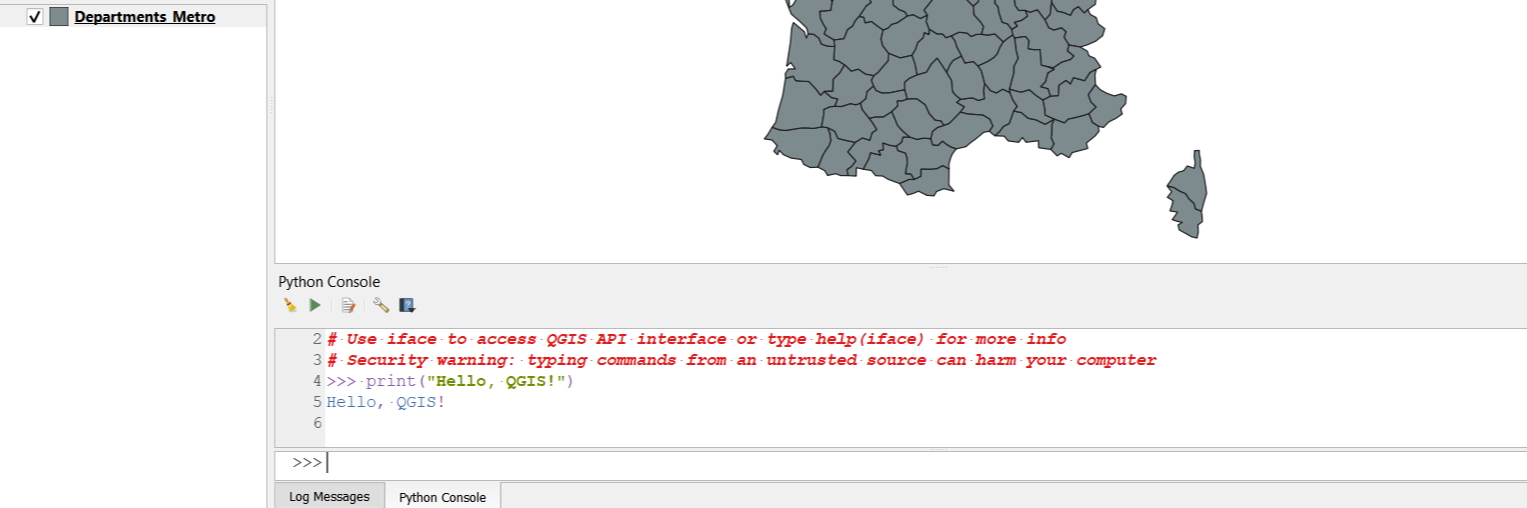
Now, let's write a simple Python script to get a feel for the Python Console. Type the following code into the input area:
Picture
 Press Enter, and you'll see "Hello, QGIS!" in the "Output" tab.
Picture
Step 4: Accessing QGIS Layers
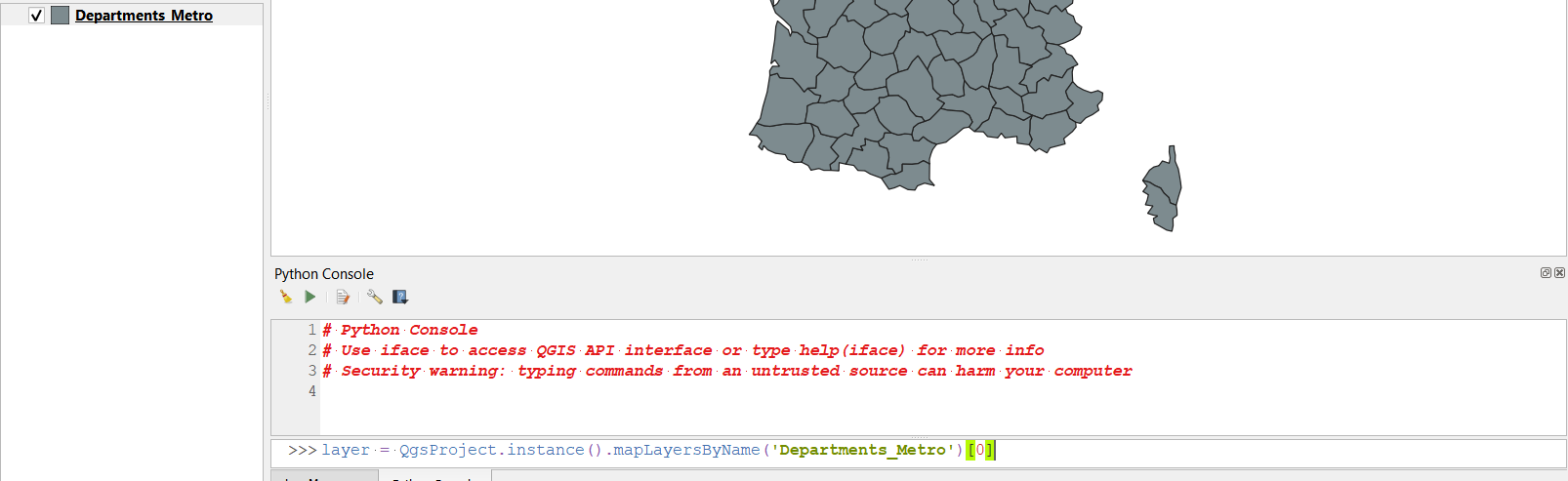
One of the most powerful aspects of the Python Console in QGIS is its ability to interact with your GIS data. Let's start by accessing a layer. Suppose you have a layer named "Departments_Metro" You can access it like this:
Picture
 Here, we've created a variable 'layer' that contains our 'Departments_Metro' layer. Note that 'Departments_Metro' should be replaced with the name of your actual layer.
Step 5: Working with Features
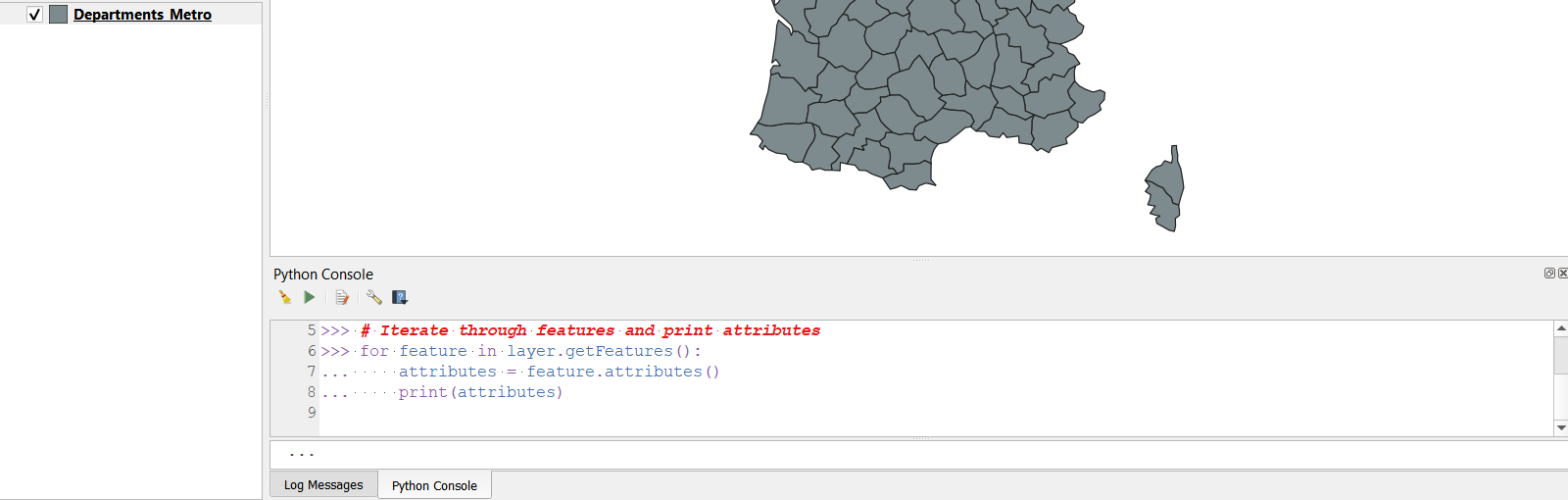
Now, let's work with the features within the 'Departments_Metro' layer. We'll iterate through the features and print their attributes:
Picture
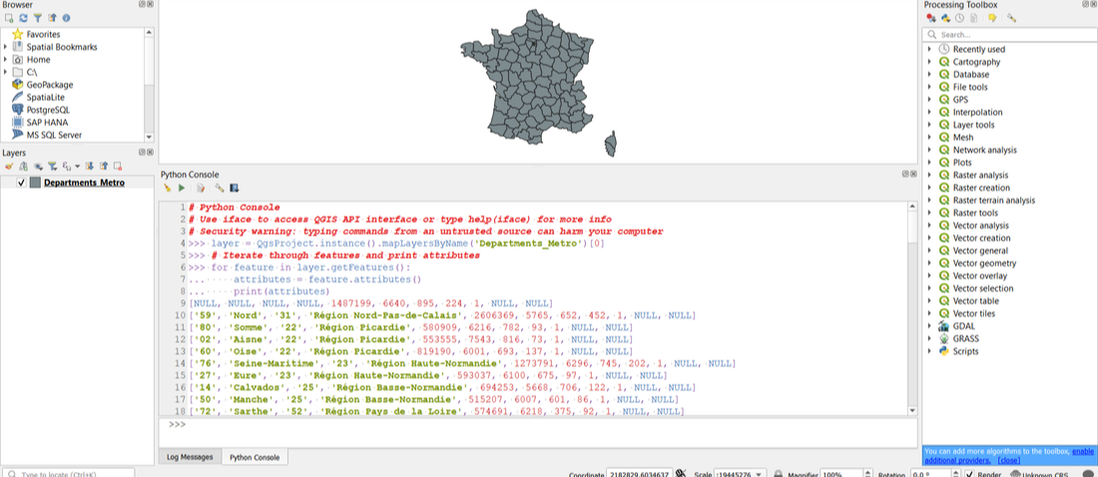
 This code retrieves all the features in the 'Departments_Metro' layer and prints their attributes.
Picture
Step 6: Performing Spatial Operations
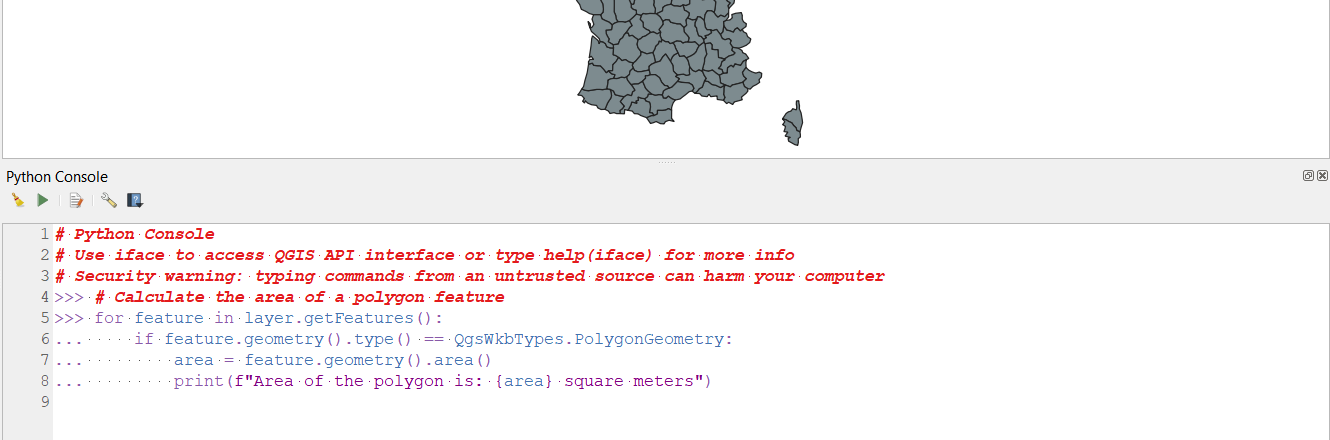
Python in QGIS also allows you to perform spatial operations. For example, you can calculate the area of a polygon feature:
Picture
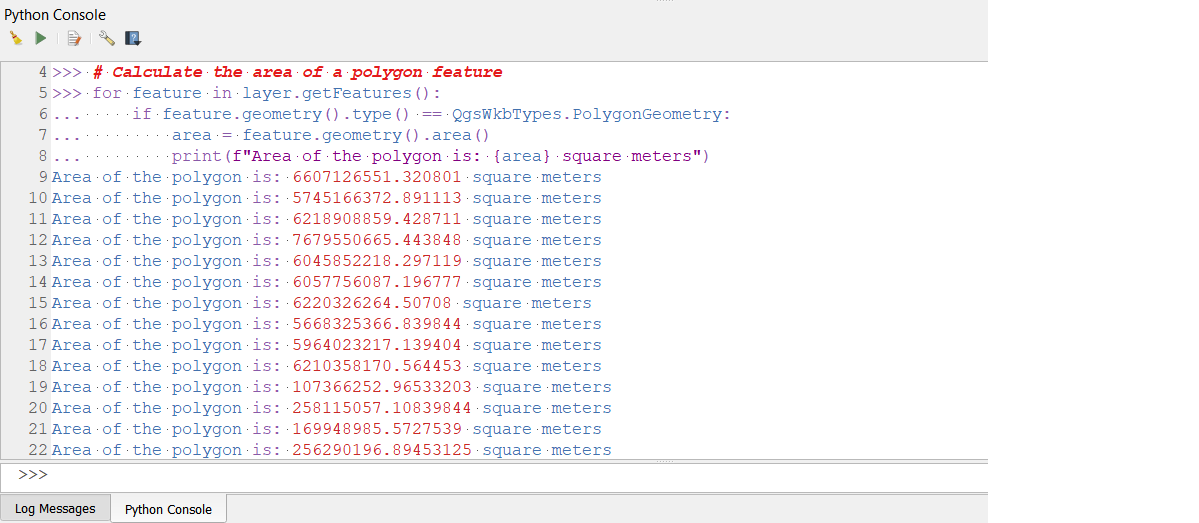
Here is the output from the above code:-
Picture
In this code, we check if a feature is a polygon and then calculate its area.

Step 7: Saving Your Work​
The Python Console in QGIS is a versatile tool that empowers GIS specialists like you to automate tasks, manipulate data, and perform complex spatial analyses. In this beginner-friendly guide, we've covered the basics of opening the console, writing and running Python scripts, and interacting with GIS layers. As you continue your journey into the world of QGIS and Python, this knowledge will serve as a solid foundation for more advanced tasks in geographic information science.
0 Comments

Integrating QGIS with PHP: Building a Simple QGIS Plugin

25/9/2023

0 Comments

 
Geographic Information Systems (GIS) enthusiasts are continually exploring ways to enhance the functionality of their favourite GIS software, QGIS. While QGIS itself is a powerful tool, its extensibility through plugins allows users to customise it to their specific needs. In this blog post, we'll dive into the world of QGIS plugins and explore a unique integration—linking QGIS with PHP. As a GIS user, you'll gain insights into QGIS plugin development and learn how to create a simple QGIS plugin that interacts with a PHP web application.

The Power of QGIS Plugins
QGIS plugins are small software add-ons that extend the capabilities of QGIS. Whether you're looking to streamline workflows, access additional data sources, or perform complex spatial analyses, there's likely a QGIS plugin that can help. These plugins are developed by the QGIS community and third-party developers, making it possible to tailor QGIS to your specific needs.

Getting Started with QGIS Plugin Development
Before we look at PHP integration, let's cover the basics of QGIS plugin development:

1. Development Environment Setup
To get started with QGIS plugin development, you'll need a development environment. Most QGIS plugins are written in Python, so having a basic understanding of Python is essential. Install Python, QGIS, and Qt Designer (a visual tool for designing user interfaces) to set up your development environment.

2. Plugin Builder
QGIS offers a handy Plugin Builder tool that simplifies the creation of new plugins. This tool generates a basic plugin template, including the necessary files and folder structure. It's an excellent starting point, especially for beginners, as it takes care of some of the initial setup complexities.
​3. Plugin Development
Once your development environment is set up, you can start coding your QGIS plugin. QGIS plugins typically consist of a combination of Python scripts, XML files for defining user interfaces, and resources like icons or images.

4. Testing and Debugging
QGIS provides a testing framework that allows you to check your plugin's functionality within the QGIS environment. Proper testing and debugging are essential to ensure your plugin works as expected.

5. Documentation and Distribution
Documentation is crucial for users who want to install and use your plugin. Fortunately, QGIS provides tools to create user-friendly documentation. After thoroughly testing and documenting your plugin, you can distribute it to others through the official QGIS Plugin Repository or other platforms.

PHP Integration with QGIS
Now, let's examine the integration of QGIS with PHP. While Python is the primary language for QGIS plugin development, you can indirectly integrate PHP with QGIS through the following steps:

1. Create a QGIS Plugin
In our example, we'll create a simple QGIS plugin that opens a PHP web application when a menu item is clicked.

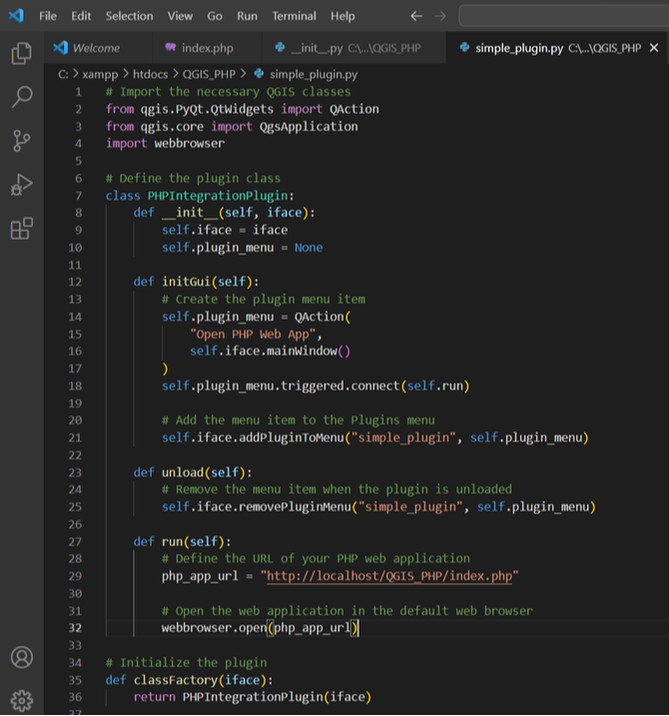
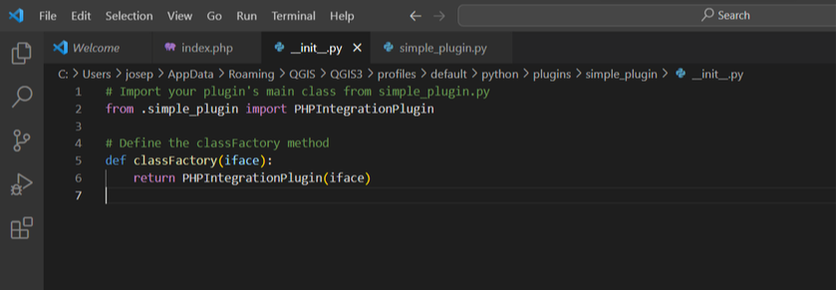
Here's the code for the QGIS plugin:
Picture
Picture
2. Create a PHP Web Application
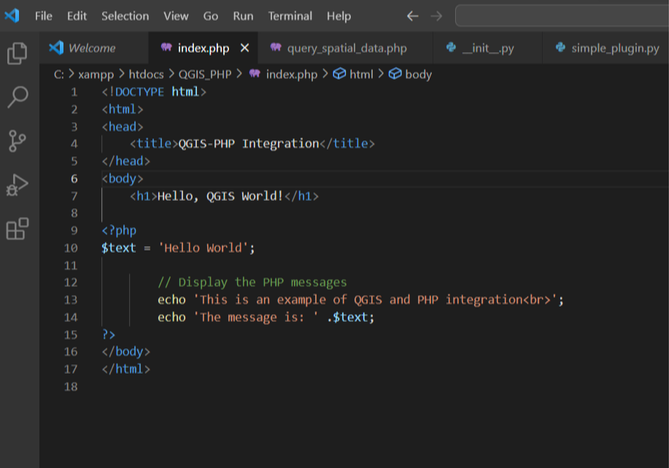
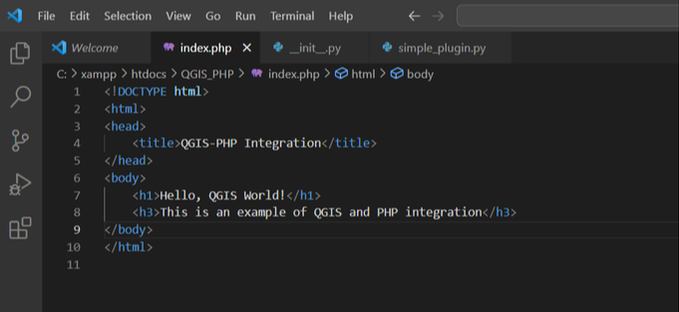
Next, develop a simple PHP web application that serves as the integration point between QGIS and PHP. Your PHP application can offer various functionalities, such as displaying maps, running spatial queries, or visualizing GIS data. For simplicity, we'll create an example that displays a "Hello, QGIS World!" message.
Picture
3. Deploy Your PHP Application
Host your PHP web application on a web server or use a local web server like XAMPP or WAMP for development. Ensure that your PHP application is accessible via a URL.

4. Install and Use the QGIS Plugin
Follow the steps below to install and use the QGIS plugin:

- Save the QGIS plugin code as a `.py` file, such as simple_plugin.py.
- Copy the file to the QGIS plugins directory. On most systems, this directory is located at:
  • Linux: ~/.local/share/QGIS/QGIS3/profiles/default/python/plugins
  • Windows: C:\Users\YourUsername\AppData\Roaming\QGIS\QGIS3\profiles\default\python\plugins
- Start or restart QGIS.
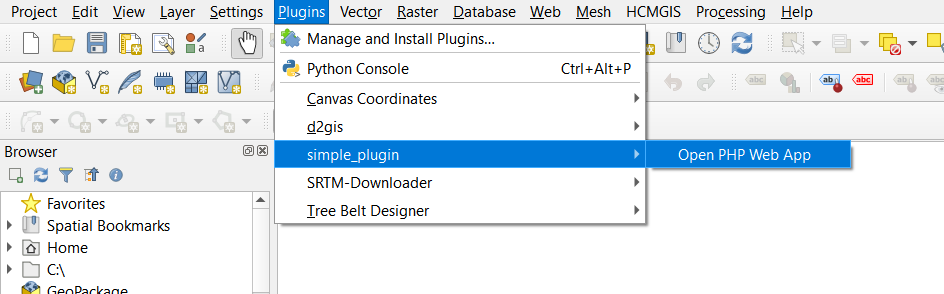
- Go to the "Plugins" menu in QGIS, and you should see "simple_plugin" as an option.
- Click "simple_plugin," and it will open the PHP web application in your default web browser.
Picture

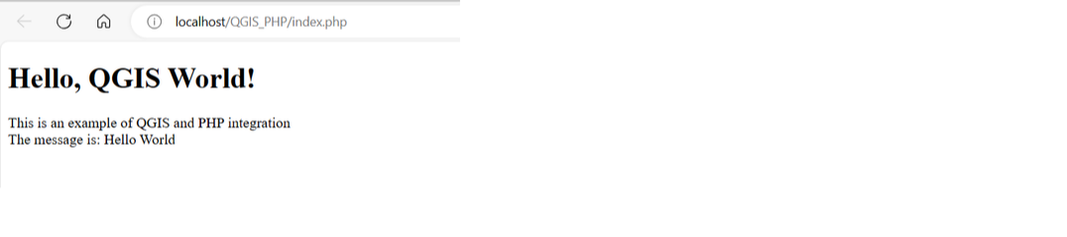
When you click on the simple_plugin  it will open the default browser and display a message as in the example below.
Picture
​In this blog post, we explored QGIS plugin development and created a simple QGIS plugin that integrates with a PHP web application. While QGIS primarily relies on Python for plugin development, the indirect integration with PHP via QGIS plugins and web applications opens up exciting possibilities for extending QGIS's functionality. Whether you're building web-based GIS applications or simply customizing your QGIS experience, this integration can help you achieve your geospatial goals.
0 Comments

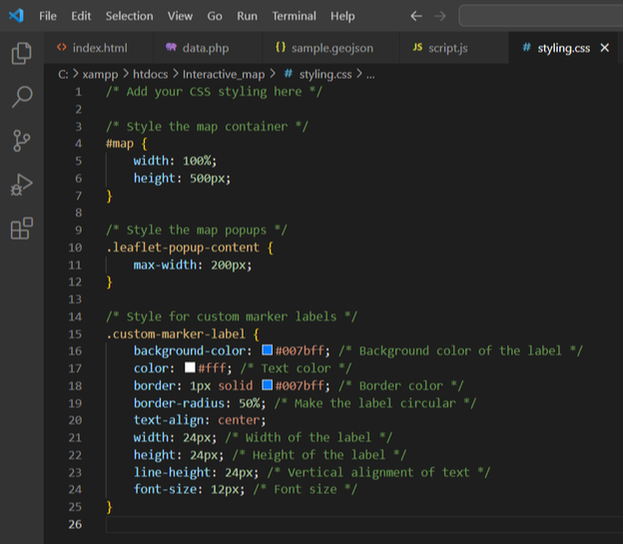
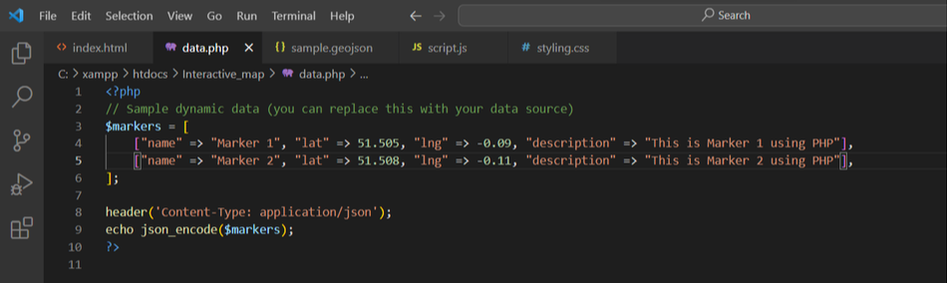
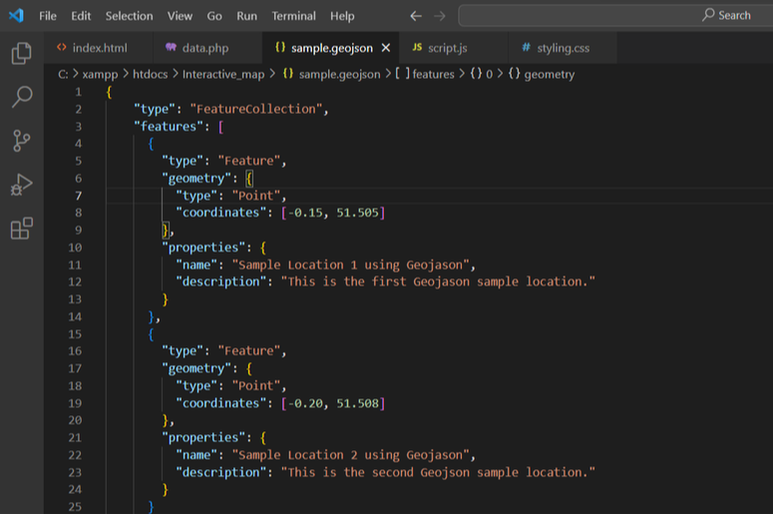
Creating Interactive Maps that Respond to User Actions with PHP, JavaScript and Leaflet

24/9/2023

0 Comments

 
Interactive maps are a powerful tool for visualising geographical data and engaging users. Whether you're a beginner or an intermediate GIS (Geographic Information Systems) user, this guide will walk you through the process of creating dynamic, interactive maps that respond to user actions. We'll use a combination of PHP, JavaScript, CSS, HTML, GeoJSON and the Leaflet library to achieve this.
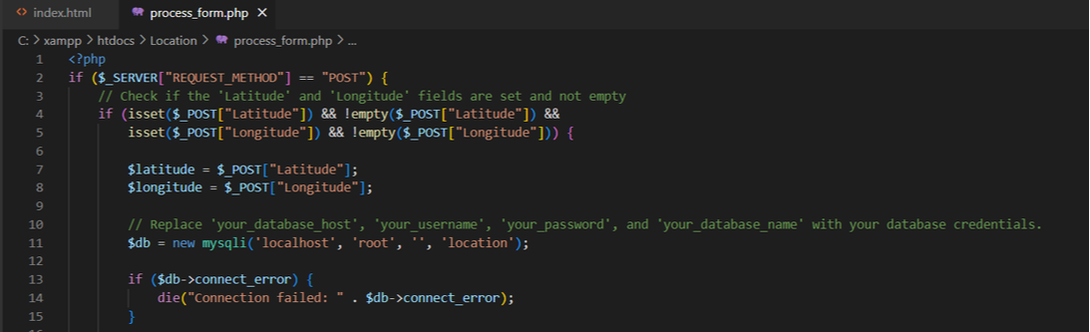
Prerequisites:
Before we begin creating interactive maps, make sure you have the following tools and knowledge:

1. Basic understanding of HTML, CSS, and JavaScript.
2. Familiarity with PHP for server-side scripting.
3. A code editor (e.g., Visual Studio Code, Sublime Text).
4. A web server (e.g., Apache, Nginx) for serving PHP files.

Setting Up Your Development Environment:

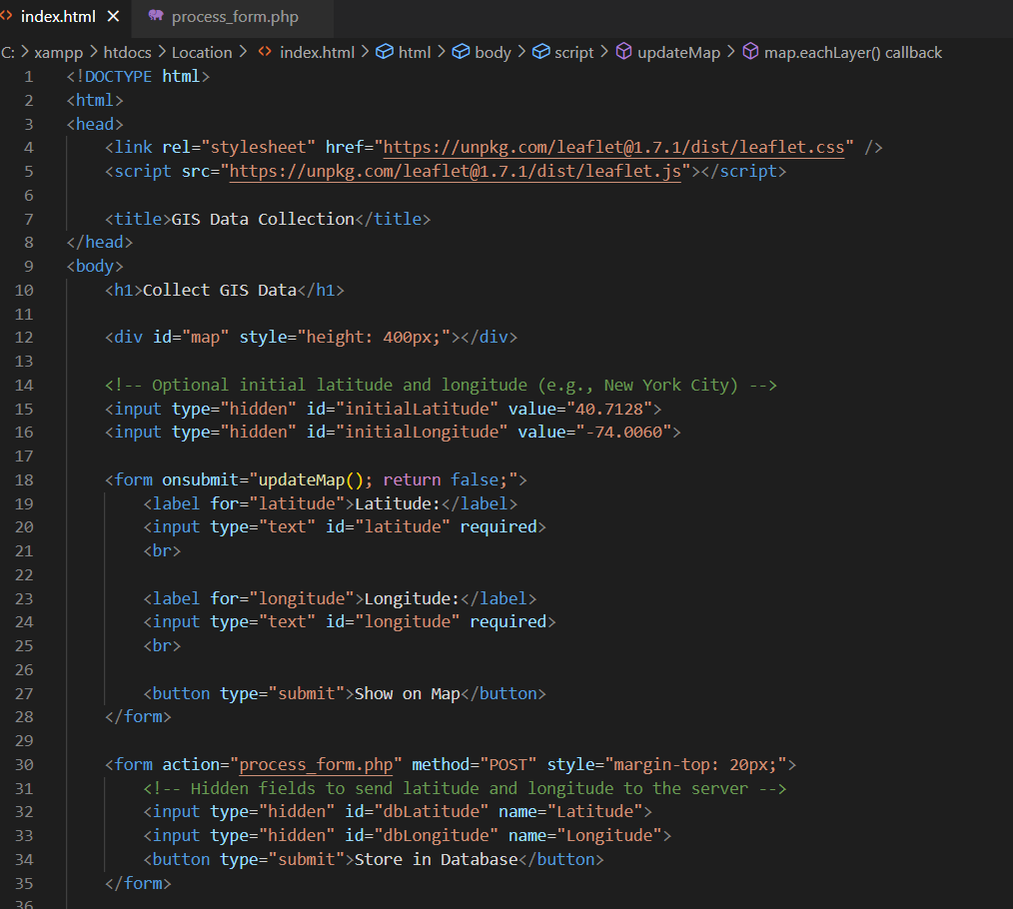
1. Install Leaflet: Start by downloading the Leaflet library and include it in your HTML file.
2. Create a New HTML File: Create an HTML file (e.g., `index.html`) where you'll build your interactive map.
Picture
Building the Interactive Map:

Let's create a simple interactive map with a few features:

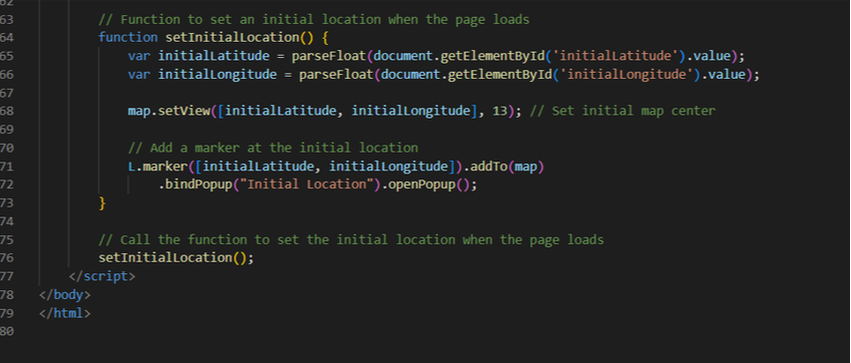
1. Setting Up the Map:
​In your JavaScript file:
Picture
Picture
2. Adding Markers:
Picture
3. Adding PHP Data:
You can use PHP to make your map dynamic by fetching and displaying data from a server-side source. For example, you could use PHP to retrieve data from a database and display it as markers on the map.
Picture
4. Adding GeoJSON Data:
Picture
Interactive Map Example
Picture
​Creating interactive maps that respond to user actions can be a rewarding experience for GIS enthusiasts. By combining PHP, JavaScript, CSS, HTML, and the Leaflet library, you can build powerful maps that engage your audience. This guide should serve as a starting point for both beginners and intermediate users of GIS. Explore further, experiment, and create maps that convey meaningful information and provide valuable user experiences.
0 Comments

Harnessing the Power of PHP in GIS: Mastering Forms and User Input Security

22/9/2023

0 Comments

 
Geographic Information Systems (GIS) have become an indispensable tool for professionals in various fields, from urban planning to environmental management. PHP, a versatile server-side scripting language, can be a valuable asset in building GIS applications. In this blog post, we'll explore the critical aspect of working with forms and user input in a GIS environment, focusing on the importance of validating and sanitizing user input for security. This guide is tailored for intermediate GIS users looking to enhance their PHP skills in this context.
Forms play a pivotal role in GIS applications, allowing users to input data, perform queries, and interact with maps. Whether you're creating a web-based GIS system or adding functionality to an existing one, PHP can help streamline the process of handling user input.
Form Validation: Ensuring Data Integrity
One of the primary responsibilities of a GIS application is to maintain data integrity. PHP's validation capabilities are invaluable in ensuring that users submit accurate and complete data. Here are some key considerations:

Client-side vs. Server-side Validation: While client-side validation can provide a smoother user experience, it's crucial to rely on server-side validation as the primary defence. Client-side validation can be bypassed, making server-side validation essential for security.

Data Type and Format Validation: Ensure that user input adheres to the expected data types and formats. For example, validate that latitude and longitude values are in the correct numerical format.

Range and Boundary Checks: Implement checks to ensure that input values fall within specified ranges. For instance, you can validate that a user-submitted coordinate lies within the geographic bounds of your map.
Input Sanitization: Guarding Against Security Threats
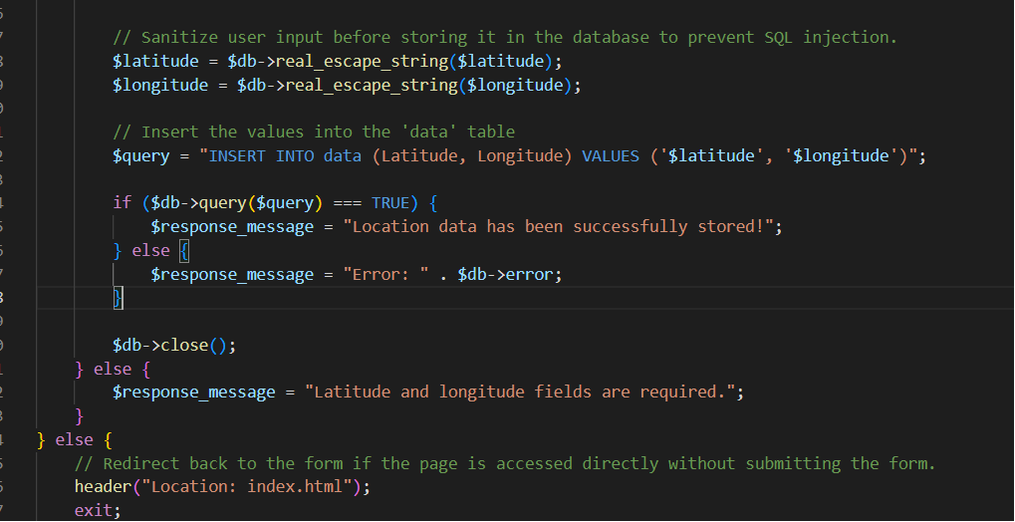
Beyond data integrity, security is a paramount concern when dealing with user input. Unsanitised user input can expose your GIS application to various vulnerabilities, including SQL injection and cross-site scripting (XSS) attacks. PHP offers several functions and techniques to mitigate these risks:

Escape User Input: Use functions like  mysqli_real_escape_string or prepared statements when interacting with a database. This prevents malicious SQL injection attempts.

HTML Entity Encoding: When displaying user input on web pages, encode it using htmlspecialchars to prevent XSS attacks. This ensures that any potential HTML or JavaScript within the input is treated as plain text.

File Upload Security: If your GIS application allows file uploads, enforce strict controls, such as limiting file types and performing server-side validation to check the uploaded files' integrity.

Regular Expressions: Employ regular expressions to validate and sanitize complex input, such as email addresses or URLs.

Best Practices for GIS Developers

Here are some best practices for GIS developers working with PHP and user input:
1. Modular Code: Break your code into modular functions or classes to handle different aspects of form processing, validation, and sanitization. This promotes code reusability and maintainability.

2. Error Handling: Implement robust error handling mechanisms to gracefully handle validation errors and provide meaningful feedback to users.

3. Logging: Maintain comprehensive logs of user input, especially when dealing with sensitive data or potentially malicious input. This can assist in troubleshooting and security audits.

4. Regular Updates: Keep your PHP version and libraries up to date to benefit from the latest security patches and enhancements.
​PHP can be a powerful ally for GIS developers when it comes to handling forms and user input. By mastering form validation and input sanitization techniques, you can not only ensure data integrity but also fortify your GIS application against security threats. Remember that security is an ongoing process, so stay vigilant and continuously update your knowledge to protect your GIS environment effectively.
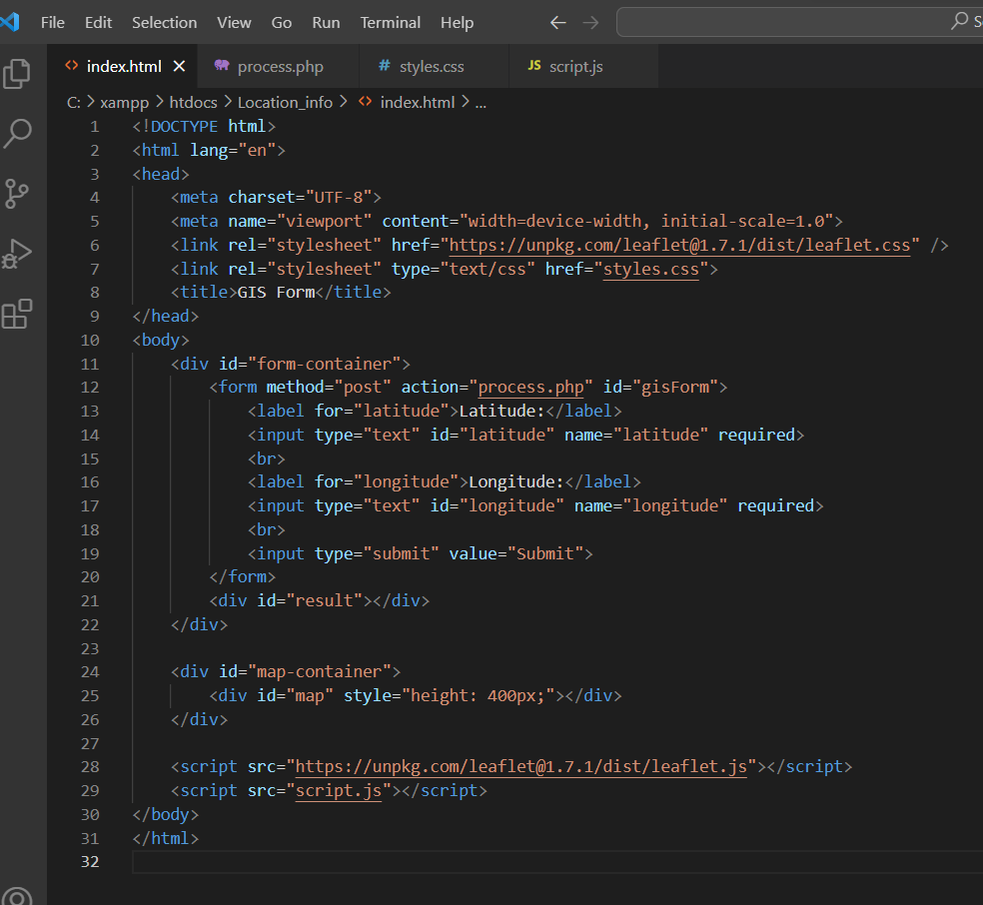
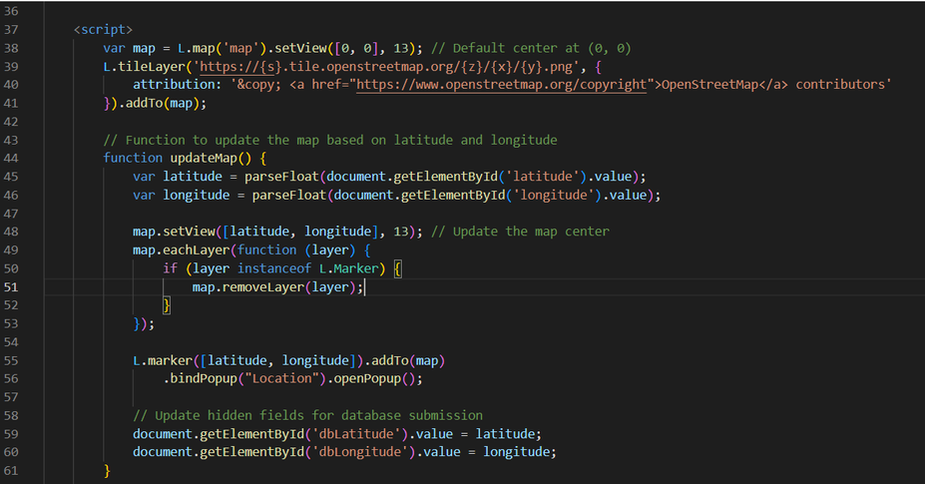
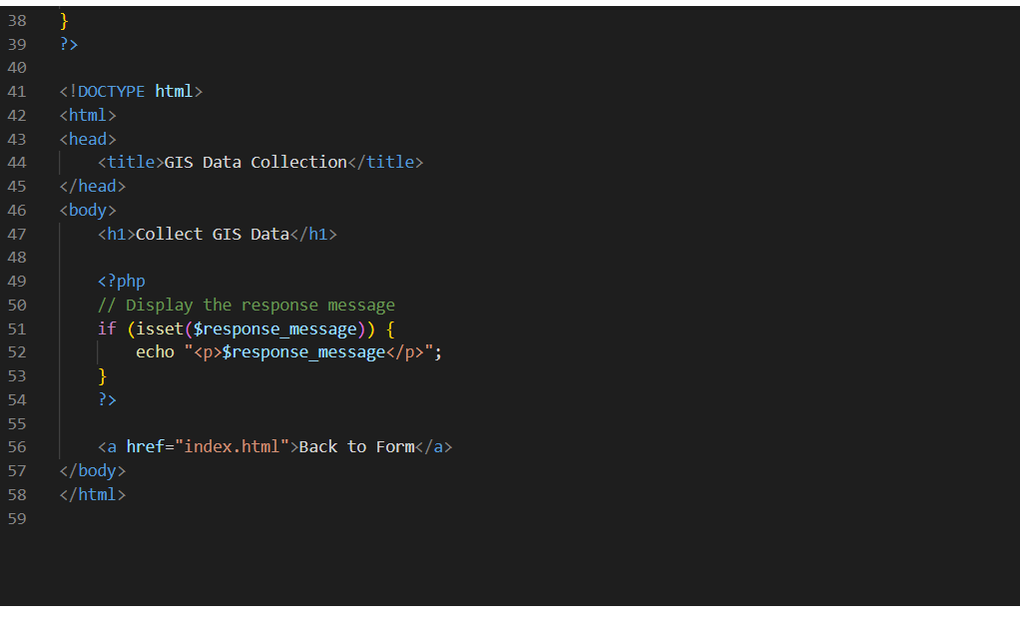
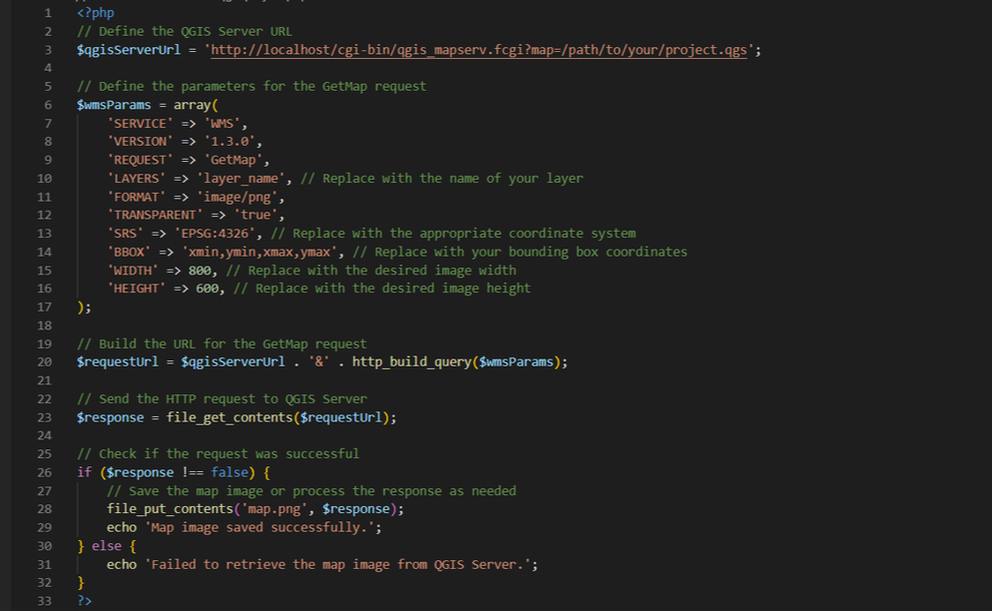
In previous blog posts, we discussed the integration of PHP and JavaScript to create a Geographic Information System (GIS) form for entering latitude and longitude coordinates and displaying them on a map. Now, let's take it a step further by adding CSS (Cascading Style Sheets) to enhance the visual appeal and layout of our GIS form and map.

Code Example: Enhancing the GIS Form and Map

In this section, we'll provide you with a code example that demonstrates how to enhance your GIS form and map with CSS styling.

HTML Structure
Picture
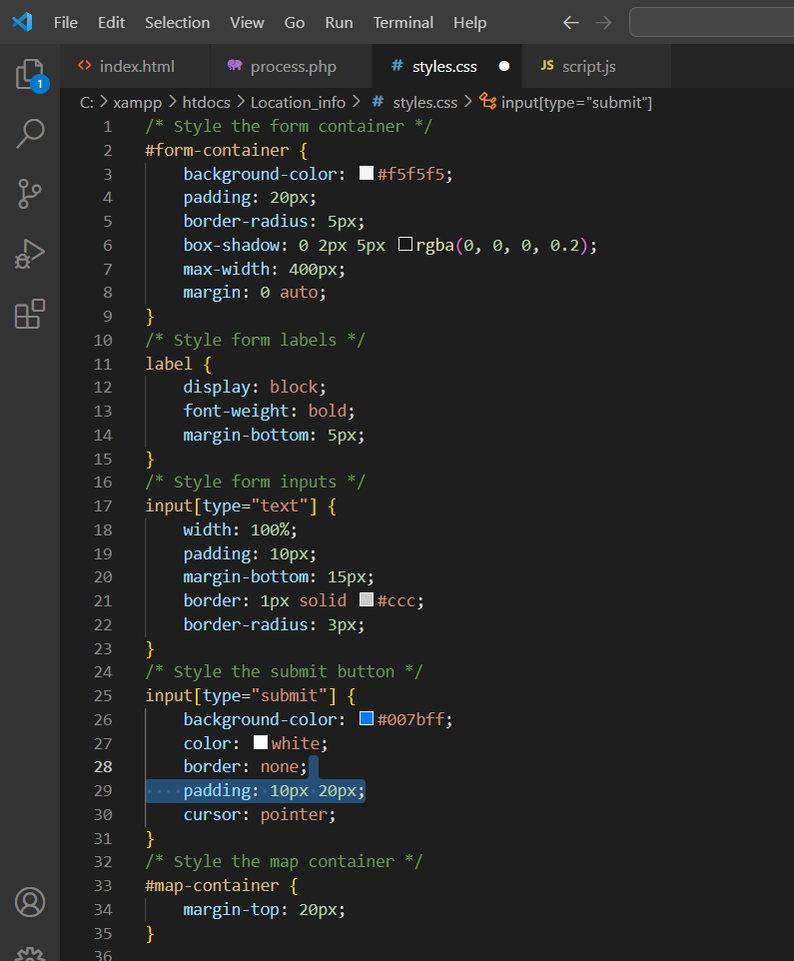
CSS Styling
Picture
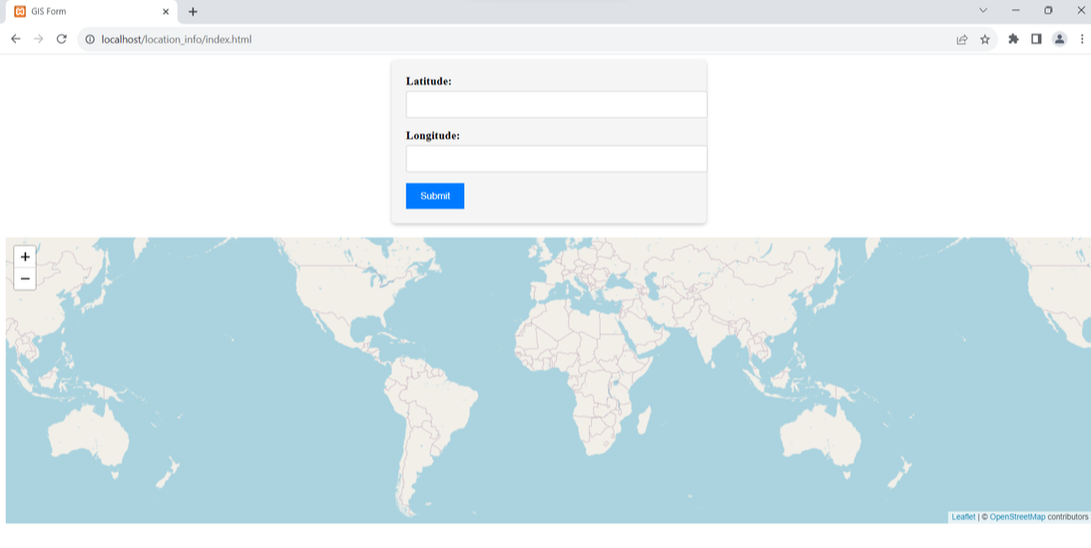
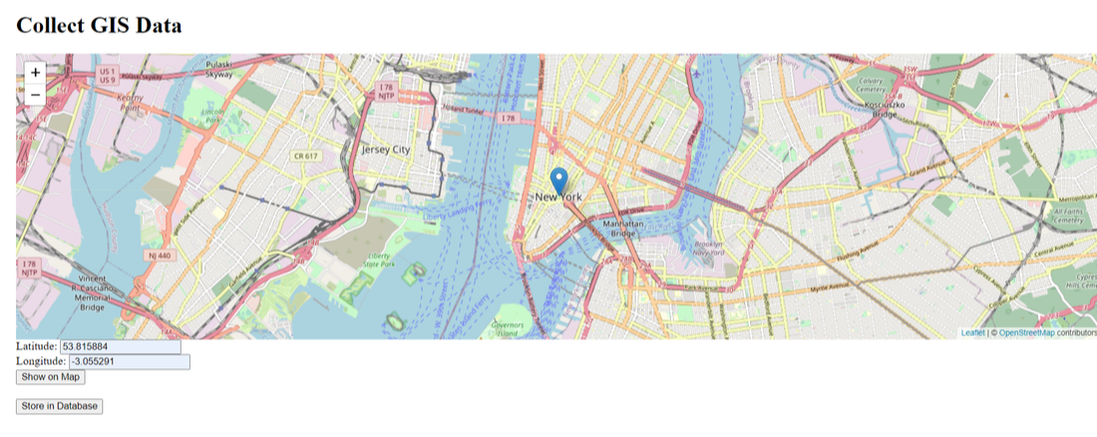
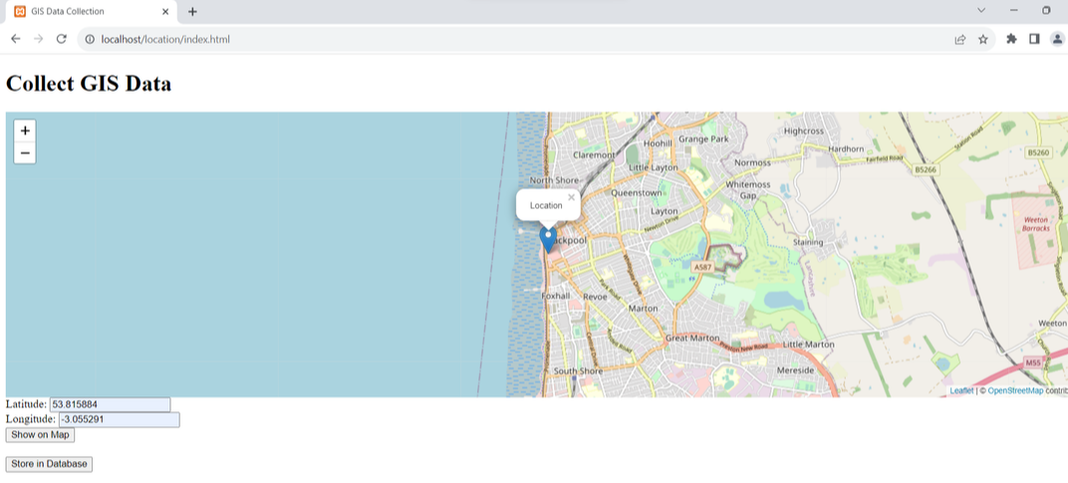
With these CSS enhancements, our GIS form now looks polished and professional, offering an improved user experience. Users will find it easier to input latitude and longitude coordinates, and the submit button is visually appealing.
Picture
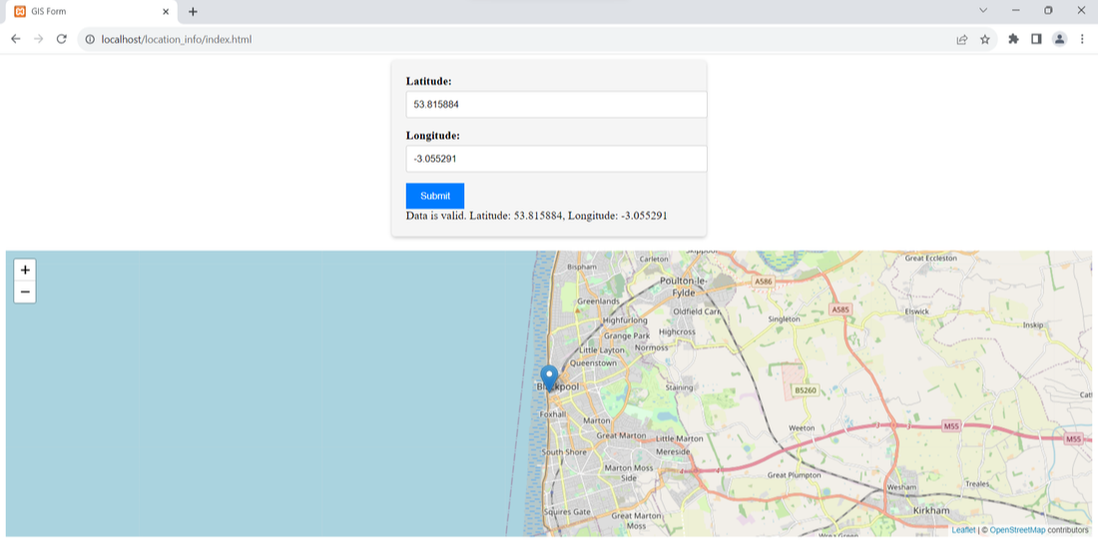
The map, situated below the form, maintains a clear separation between the two elements and provides a visual representation of the entered coordinates. When valid coordinates are submitted, the map updates to display the location accurately.
Picture
Incorporating CSS into your GIS application not only improves aesthetics but also contributes to a user-friendly interface, making it more accessible and engaging
0 Comments

Processing GIS Form Data with PHP: A Beginner's Guide

21/9/2023

0 Comments

 
Geographic Information Systems (GIS) play a crucial role in various fields such as urban planning, environmental management, and location-based services. One common task in GIS is collecting and processing user input through web forms. In this beginner's guide, we will explore how to process form data with PHP, a server-side scripting language widely used for web development.
Understanding the Basics

Before we dive into the code, let's clarify a few fundamental concepts:

HTML Forms
HTML forms are a way for users to input data on a webpage. They consist of various input elements like text fields, checkboxes, radio buttons, and submit buttons. Users fill out these forms, and when they submit the data, it is sent to a server for processing.

PHP
PHP is a server-side scripting language that can handle form data, process it, and interact with databases. It is often used in conjunction with HTML to create dynamic web applications.

POST and GET Methods
HTML forms can use two primary methods to send data to the server: POST and GET. In this guide, we'll focus on the POST method, which is more secure and appropriate for handling sensitive information like user passwords.

Setting Up the HTML Form

Let's start by creating a simple HTML form that collects geographic data. For example, we'll create a form to collect a location name and coordinates (latitude and longitude):
Picture
In this code, we have created a simple HTML form with fields for name, latitude, and longitude. The action attribute specifies the PHP script that will process the data (in this case, `process_data.php`), and we've set the method attribute to "post" to use the POST method.

Processing Form Data with PHP

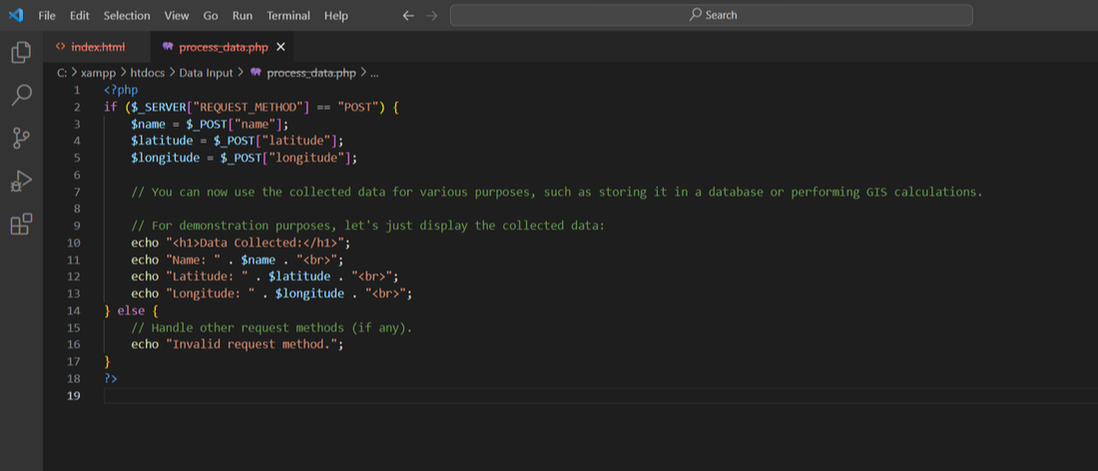
Now, let's create the PHP script `process_data.php` to handle the form data:
Picture
​In this PHP script, we first check if the request method is POST, which ensures that the form data is being submitted. We then use the `$_POST` superglobal to retrieve the values entered in the form fields and store them in variables.

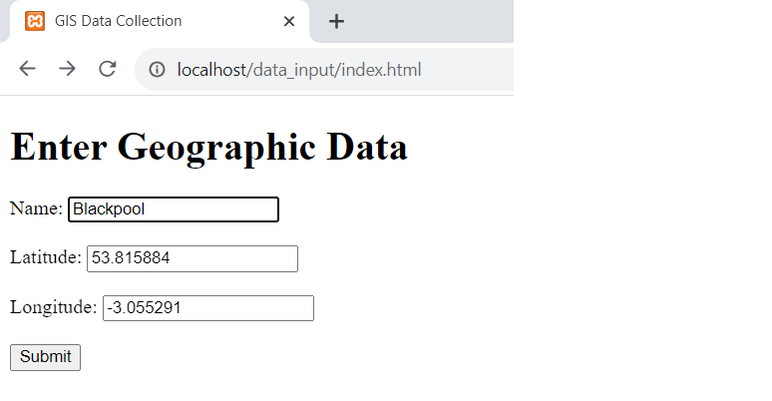
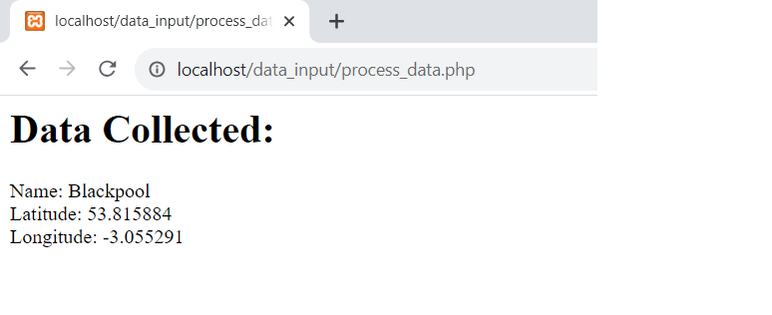
Now, you can use this collected data for various GIS-related tasks, such as storing it in a database, performing spatial analysis, or displaying it on a map. In the following images we show the name, latitude and longitude fields completed.  Once the Submit button is pressed the process_data.php code displays the results in a new page.  Of course in a real application we would save this information to a relational database rather than just displaying the results.
Picture
​Processing form data with PHP is an essential skill for GIS beginners, as it allows you to gather user input and manipulate geographic information effectively.
Picture
​​
With this guide, you should have a solid foundation for creating HTML forms, collecting data, and using PHP to process and work with that data in your GIS applications. As you continue to explore GIS development, you'll find countless opportunities to leverage these skills to build powerful and interactive web-based geographic applications. Happy coding!
0 Comments
<<Previous

    Author

    Joe Short BSc has been involved with various mapping solutions for over twenty years.  If you are considering implementing a GIS  or have ArcGIS Pro, MapInfo Pro or QGIS training requirements, jps services would be happy to be of assistance to your organisation. 

    Archives

    May 2025
    March 2025
    March 2024
    October 2023
    September 2023
    August 2023
    March 2023
    April 2020
    March 2020
    October 2019
    September 2019
    August 2019
    July 2019
    March 2019
    November 2018
    October 2018
    August 2018
    July 2018
    November 2017
    October 2017
    September 2017
    July 2017
    February 2017
    January 2017
    December 2016
    November 2016
    October 2016
    May 2016
    February 2016
    September 2015
    August 2015
    April 2015
    February 2015
    November 2014
    October 2014
    July 2014
    June 2014
    May 2014
    March 2014
    February 2014
    December 2013
    November 2013
    October 2013
    September 2013
    August 2013
    June 2013
    May 2013
    April 2013
    February 2013
    December 2012
    October 2012
    September 2012
    August 2012
    July 2012

    Categories

    All
    Arc Gis
    Arcview
    Autodesk
    Cad
    Gis Training
    Local Government
    Mapbasic
    Mapinfo
    Quantum Gis
    Relational Databases
    Saga Gis

    RSS Feed